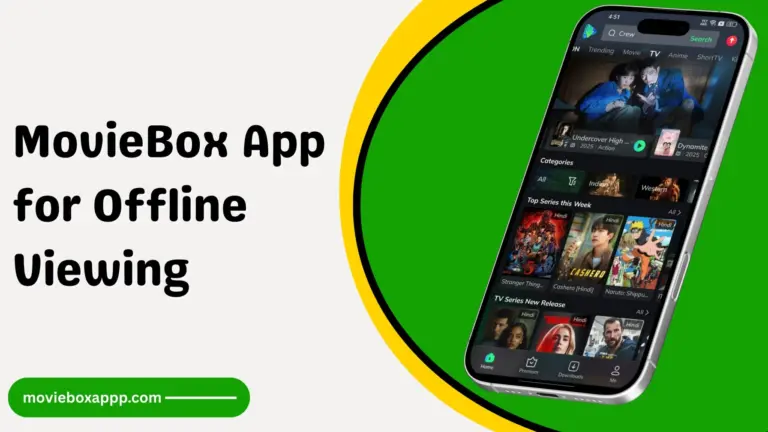
How to Cast MovieBox APK From Phone to TV?
A small phone screen is not always enjoyable; it sometimes feels limiting. Many users enjoy live sports streaming on a bigger screen. If you are a sports lover who wants to watch your favourite live events and match highlights on your big screen devices, because big screens provide a clear picture and loud audio. Then, the good news is that MovieBox APK supports casting, which means users can easily cast MovieBox from their phone to their TV, allows you to watch their favorite movies, TV shows, and live sports comfortably on a larger display without complicated setups.
Casting the MovieBox phone to a smart TV is very simple and does not need any technical knowledge. It requires a Smart TV, a Chromecast device, and a high-speed internet connection. If you don’t know how to set it up, then no worries, in this article, we will explain every simple step in detail below. Once your device is connected and you’re done, enjoy live sports, events, and match highlights on a big screen, and also control playback from your phone.
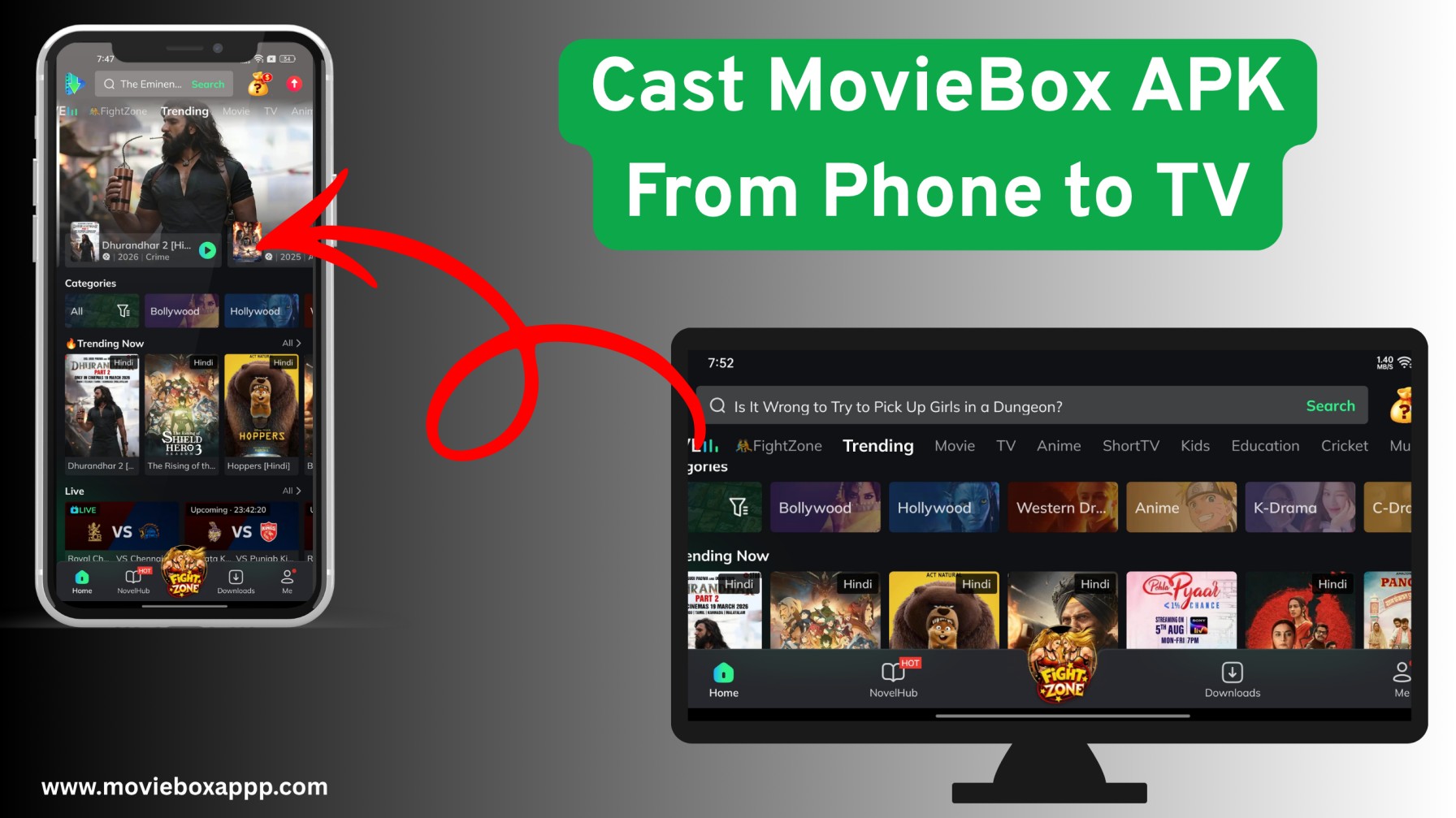
Easy Steps to Cast MovieBox APK From Phone to TV
Since MovieBox APK comes with built-in Chromecast support, it is very easy and simple to connect your phone to your TV and watch your preferred content on a big screen. Before casting, always ensure MovieBox is already installed on your Android phone, your TV supports Chromecast, and both devices are connected to the same Wi-Fi. Now, you can start casting. Follow the simple step-by-step guide below.
Step 1: First, start on your Smart TV and set the input to HDMI if you are using a Chromecast device. Ensure the TV is ready to receive the cast signal.
Step 2: Next, launch the MovieBox app on your device. Once the app is open, navigate to the Menu section and select “Turn on Chromecast” to activate the casting feature within the app.
Step 3: Choose your favorite sports match to watch and get ready to enjoy it. As the video starts, look for the Cast icon in the video player.
Step 4: Tap this icon, and your phone will present a list of devices that are available for casting. Select your smart TV or Chromecast from the list and tap to connect.
Step 5: Once connected, the video will begin playing on your TV, allowing you to enjoy your favorite content on a larger screen.
How to Control Playback From Your Phone
You can control your smart TV with your mobile phone like a remote control.
- Pause and resume the video
- Play the video
- Skip forward and backward in the video
- Change the video or stop casting
- Adjust the volume and brightness
Common Problems and Simple Solutions
- Ensure both phone and TV devices are connected to the same Wi-Fi network.
- If the video is running slowly, close other apps running in the background.
- While buffering, restart the MovieBox app and try again.
- Chromecast or TV is perfectly connected to the internet.
- Allow the necessary permissions required for streaming videos
- The app is still buffering or crashing; please reinstall it.
Benefits of Casting MovieBox to TV
When you use this method, you’ll enjoy a significantly improved viewing experience with a larger display.
- Bigger screen experience for movies and shows.
- Additionally, the sound quality is enhanced when using TV speakers.
- More comfortable to view than a phone.
- Perfect for watching with family or friends.
- Making it ideal for watching movies with family and friends.
- Your phone conveniently serves as a smart remote control, offering easy navigation.
- Furthermore, if your TV has casting features, there’s no need to install the MovieBox app directly on the television.
Frequently Asked Questions (FAQs)
Conclusion
MovieBox APK casting from phone to TV is one of the best ways to enjoy unlimited live sports streaming on a big screen. The process is simple, easy, fast, and does not require any technical skills. Just connect your devices, tap the cast button, and enjoy your favorite entertainment in full-screen with your comfort place and enhance your watching experience.